
OCuLink eGPU Dock, PCIe 4.0 x4
4.5Editor score
PCIe 4.0 x4 bandwidth
19.7-inch shielded cable
Open-frame GPU support
This Oculink Enclosure guide compares ten docks and adapters for bandwidth, GPU support, cabling, power needs, portability, and compatibility.
An Oculink enclosure can add desktop-class graphics to a compatible mini PC, laptop, or handheld without relying on USB-C or Thunderbolt. The best model depends on native port support, PCIe generation and lane width, included cabling, power-supply support, and the physical protection needed for your graphics card.
We compared the listed Oculink docks by examining their connection standards, cable lengths, power options, frame designs, status indicators, operating requirements, and supported devices. The list also includes two non-graphics products to clarify how Oculink adapters and conventional SSD enclosures differ from true external GPU solutions.
Each review identifies the product's most useful qualities and its important limitations. Three standout options receive the top-pick distinctions, while the remaining entries help illustrate the range of available designs. Product availability and prices can change, so verify current listings and hardware compatibility before purchasing.
4.5Editor score

5.0Editor score
5.0Editor score
The comparison covers true PCIe 4.0 Oculink graphics docks, a compact dual-interface dock, a flexible M.2 adapter, and a USB-C SSD enclosure, with the key distinctions centered on host connectivity, bandwidth, power requirements, and intended use.




This open-frame OCuLink dock delivers PCIe 4.0 x4 connectivity through a native OCuLink host port and presents a PCIe x16 enclosure interface to the graphics card. It holds a 4.5 rating and stands out as a well-equipped general-purpose option for users who want more flexibility than a fixed, compact enclosure. Its detachable cable design, LED indicators, and support for automatic or forced startup make it practical for recurring desktop sessions.
We may earn a commission when you buy through this link, at no additional cost to you.
The included 19.7-inch SFF-8611 male-to-male cable is thin, flexible, and shielded to limit electromagnetic interference. The dock can accommodate AMD, Intel, and NVIDIA cards, while its open structure removes conventional card-length restrictions. A dedicated ATX power bracket improves stability, and the listed compatibility with modern RTX and Radeon cards makes the platform broad enough for gaming, rendering, AI, and content-creation configurations.
The trade-offs are practical rather than fundamental. A graphics card and ATX power supply are not included, and the dock requires approximately 15 minutes of assembly with a screwdriver. The supplied guidance recommends adequate power headroom, installed graphics drivers, and no hot-plugging. Those requirements add setup work, but they are common to this class of external graphics hardware and prevent avoidable connection or stability problems.
This is the best overall value for buyers who already own a compatible computer, graphics card, and suitable power supply. Choose it over a smaller dock when cable reach, GPU size, serviceability, and straightforward open-frame construction matter most. Users without native OCuLink should not buy it unless they already own a suitable OCuLink adapter.
The PCIe 4.0 x4 link provides substantially more headroom for many external graphics workloads than common USB4 connections. The open frame also gives builders clear access to the card, power connections, and mounting hardware.
The 19.7-inch cable is long enough for typical desk arrangements without introducing the excess slack of a much longer lead. Its thin, shielded construction is intended to preserve signal quality and remain manageable during routine repositioning.
We may earn a commission when you buy through this link, at no additional cost to you.
This dock combines an OCuLink SFF-8612 female-to-PCIe x16 enclosure with a detachable 19.7-inch SFF-8611 male-to-male cable. It carries a 4.4 rating and emphasizes serviceability, using removable cable ends to make the unit easier to pack and store. PCIe 4.0 x4 transfer capability provides the core bandwidth expected of a native OCuLink graphics solution.
We may earn a commission when you buy through this link, at no additional cost to you.
Gold-plated contacts are specified to improve conductivity and reduce resistance associated with oxidation. Multi-status LEDs give users visible information about operating state, while the cable's thin flat profile, shielding, and EMI materials are designed to minimize interference. The enclosure accepts graphics cards of various lengths and uses dual screw mounting to stabilize a standard ATX power supply.
Its main limitation is a more prescriptive power arrangement: only a standard ATX supply is supported, and neither the supply nor the graphics card is included. OCuLink also does not support hot-plugging, so both the host and dock must be shut down before the connection is changed. Buyers who need SFX support or routinely disconnect the enclosure while operating should look elsewhere.
The product suits builders who value straightforward disassembly, visible status feedback, and a compact stored footprint. It is a strong alternative to the first-ranked model for users who expect to travel with the dock. Confirm that the computer exposes the correct OCuLink port and that the intended graphics card and ATX power supply fit before ordering.
Detachable cable ends allow the dock and host computer to be separated for transport. That makes the system less awkward to pack than a permanently cabled external graphics assembly, especially when both components must cross different locations.
The combination of gold-plated board contacts, a flat cable, and comprehensive shielding addresses several common high-speed connection concerns. It is still important to protect the delicate SFF-8611 connectors from bending or pin damage.
We may earn a commission when you buy through this link, at no additional cost to you.
This OCuLink eGPU dock combines a 5.0 rating with a balanced set of construction and compatibility features. It converts a native OCuLink connection to PCIe x16 and provides PCIe 4.0 x4 bandwidth. The package includes the enclosure, a 50-centimeter SFF-8611 cable, and an illustrated manual, while leaving the graphics card and ATX power supply for the user to supply.
We may earn a commission when you buy through this link, at no additional cost to you.
The cable uses a metal shielding layer and EMI-shielded conductive polymer to support stable high-speed transmission. The open-frame design accommodates NVIDIA, AMD, and Intel graphics cards without imposed length restrictions. That cross-brand flexibility makes the dock suitable for users who may change cards or build different systems over time.
The product's documentation is particularly helpful about a common first-use problem: graphics drivers should be installed before connecting the dock so the system can detect the external card correctly. The dock also explicitly warns against hot-plugging and requires a complete host shutdown before cable changes. Its standard-ATX-only design is another limitation for builders already using small SFX supplies.
Among the listed products, this is the strongest balanced recommendation for a typical OCuLink graphics build. It offers a five-star rating, clear installation guidance, broad GPU support, and a carefully shielded cable without introducing an unusually specialized form factor. Choose it when a straightforward full-size-card solution matters more than SFX flexibility or extra cable length.
The combination of metallic shielding and conductive polymer is intended to suppress interference and help the dock maintain a stable link. That makes the included cable a meaningful part of the package rather than an incidental accessory.
Installing the appropriate graphics drivers before first use addresses one of the most common reasons an external GPU is not detected. The supplied manual's explicit notice helps reduce setup friction for first-time builders.
We may earn a commission when you buy through this link, at no additional cost to you.
The AOOSTAR EG02 is a compact external graphics dock with a 5.0 rating. It connects through a native OCuLink port operating at PCIe 4.0 x4, making it a different form factor from the larger open-frame products. The listed dimensions are 26.8 by 17.5 by 2.2 centimeters, which should be considered when planning space around the graphics card and power connections.
We may earn a commission when you buy through this link, at no additional cost to you.
One of its most useful distinctions is support for both ATX and SFX power supplies. That gives builders more options than docks limited to standard desktop power hardware. The listing also emphasizes that buyers must confirm a native OCuLink port before purchasing, avoiding accidental incompatibility with USB-C, USB4, or Thunderbolt systems.
The supplied information is less extensive than for the leading docks. It does not describe the included cable length, exact construction details, indicators, operating modes, or assembly process. As a result, prospective buyers should examine the current listing, product images, and manual to confirm whether the enclosure accommodates the dimensions and power requirements of their intended graphics card.
This is a compelling option for someone who wants a less sprawling OCuLink enclosure and already owns an SFX-compatible system. Its high rating and flexible power support are positives, but the smaller body may impose tighter clearance than the open alternatives. It works best for builders willing to verify physical fit and compatibility in detail.
Supporting both ATX and SFX units makes the EG02 more accommodating for compact builds. Builders can choose a power supply that matches their case arrangement without being restricted to full-size desktop hardware.
The dock is intended for systems with a genuine OCuLink connection. It should not be assumed to work with a USB-C port that merely advertises external-display support, so model-level verification is essential.
We may earn a commission when you buy through this link, at no additional cost to you.
This dock's defining feature is its 39.4-inch SFF-8611 cable, the longest standard OCuLink lead among the mainstream graphics docks in the list. It maintains PCIe 4.0 x4 bandwidth and carries a 4.5 rating. The extra reach can solve awkward desk layouts where the mini PC, enclosure, and display are too far apart for a short cable.
We may earn a commission when you buy through this link, at no additional cost to you.
The cable retains the thin 0.5-millimeter flat profile and uses full shielding and electromagnetic interference suppression. The dock includes status LEDs, an automatic startup mode, and a forced mode for manual activation. An independent side bracket holds the ATX power supply and graphics card more securely, reducing movement in a setup where the enclosure may be positioned away from the host.
The primary drawback is physical manageability. A cable approaching one meter is less convenient to route across a crowded desk, and its extra length is unnecessary when the host and dock sit beside each other. The enclosure also supports only ATX power, requires drivers, and prohibits hot-plugging, while the graphics card and PSU remain excluded.
Choose this model when cable reach is the decisive factor, such as in a workstation where the computer is mounted away from the graphics card. For a compact mobile setup, a shorter cable will usually be easier to organize. Its strong feature set and broad GPU compatibility make it a practical choice when distance cannot be compromised.
A long OCuLink cable allows a desktop graphics card to remain in a separate enclosure or workstation area. That separation can improve cooling, reduce clutter around the main computer, and simplify access to the external display.
The independent side bracket supports both the graphics card and ATX power supply. It is especially useful when the dock sits away from the host, where accidental movement could stress the power or signal connections.
We may earn a commission when you buy through this link, at no additional cost to you.
This 4.5-rated dock uses a 29.5-inch OCuLink cable, placing it between shorter desktop leads and the extended model ranked fifth. It provides PCIe 4.0 x4 transfer speed and converts OCuLink to a PCIe x16 graphics interface. The balance of cable reach, slim construction, and an open frame makes it suitable for laptop and mini-PC users who need some placement flexibility.
We may earn a commission when you buy through this link, at no additional cost to you.
Its 0.5-millimeter cable uses full shielding and interference suppression, while an independent side bracket helps prevent the ATX power supply and graphics card from wobbling. Multiple LEDs display operating status. Automatic startup lets the enclosure follow the host's power state, and forced mode provides an alternative when manual control is preferred.
As with the other open-frame docks, the package does not include a graphics card or power supply. ATX power is the only listed option, which may complicate very compact builds. The dock cannot be hot-plugged, and the suggested PSU capacity should be about 40 percent above the GPU's full-load wattage. Driver installation is also required for proper display operation.
This is a strong choice when a short cable is inconvenient but a meter-long lead would be excessive. It may be the easiest of the long-cable options to manage in a portable workstation bag or temporary gaming setup. Buyers should prioritize it for its placement flexibility, particularly if the enclosure will sit near but not directly beside the host.
The 29.5-inch lead offers enough distance to route around a monitor stand, desk edge, or compact support structure. It remains shorter than the one-meter alternative and is therefore easier to coil and store.
Automatic mode is convenient for regular desktop use because the enclosure follows the computer's operating state. Forced startup provides useful flexibility for testing, maintenance, or setups where the preferred power sequence differs.
We may earn a commission when you buy through this link, at no additional cost to you.
This adapter is not a traditional external graphics enclosure; it is an Oculink-to-M.2 converter intended primarily for NVMe storage and other PCIe expansion use. It uses SFF-8611 or SFF-8612 connections and supports PCIe 4.0 x4 signaling at up to 64Gbps. Because the product has no supplied numeric rating, buyers should assess its fit for a specific expansion task rather than rely on a rating comparison.
We may earn a commission when you buy through this link, at no additional cost to you.
The board accepts one M.2 NVMe PCIe SSD in 2242, 2260, 2280, or 2230 format. It can be configured with one OCuLink and one NVMe device or two of each. The description also states support for GPUs and expansion cards, although the absence of enclosure structure, powered cooling, and graphics power provisions makes it a poor substitute for a dedicated eGPU dock.
Important protocol boundaries apply. The converter cannot turn NVMe into SATA or SAS, nor can it convert NGFF SATA or SAS devices into OCuLink. These limitations are fine for a PCIe NVMe-focused installation, but they make the product unsuitable for legacy drive formats. Installation also depends on whether the host or motherboard exposes the required OCuLink connectors.
Buy this product for internal storage expansion or a specialized PCIe routing project, not as a general-purpose graphics enclosure. It may be useful to a builder who already understands SFF connectors and motherboard layouts. For adding a desktop graphics card to a mini PC, choose a purpose-built dock with a PCIe x16 slot, external power support, and card retention hardware.
The adapter gives a compatible system access to an M.2 NVMe drive through an OCuLink link. It can be useful where a motherboard lacks a convenient internal M.2 position but offers the required high-speed connectors.
OCuLink carries PCIe signals, not SATA or SAS commands. Checking the protocol required by the drive and expansion card before buying prevents a mismatch that adapters cannot resolve.
We may earn a commission when you buy through this link, at no additional cost to you.
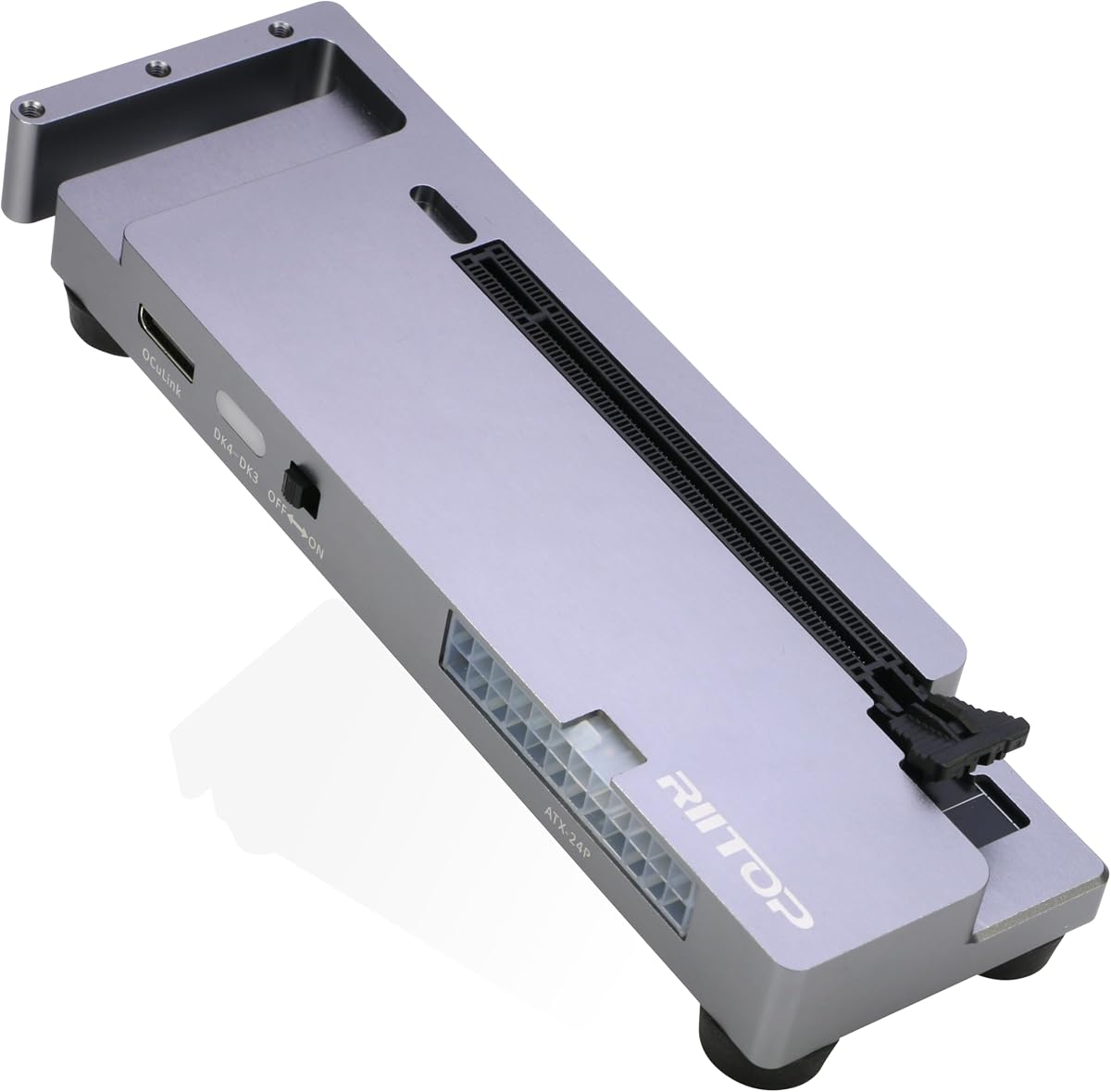
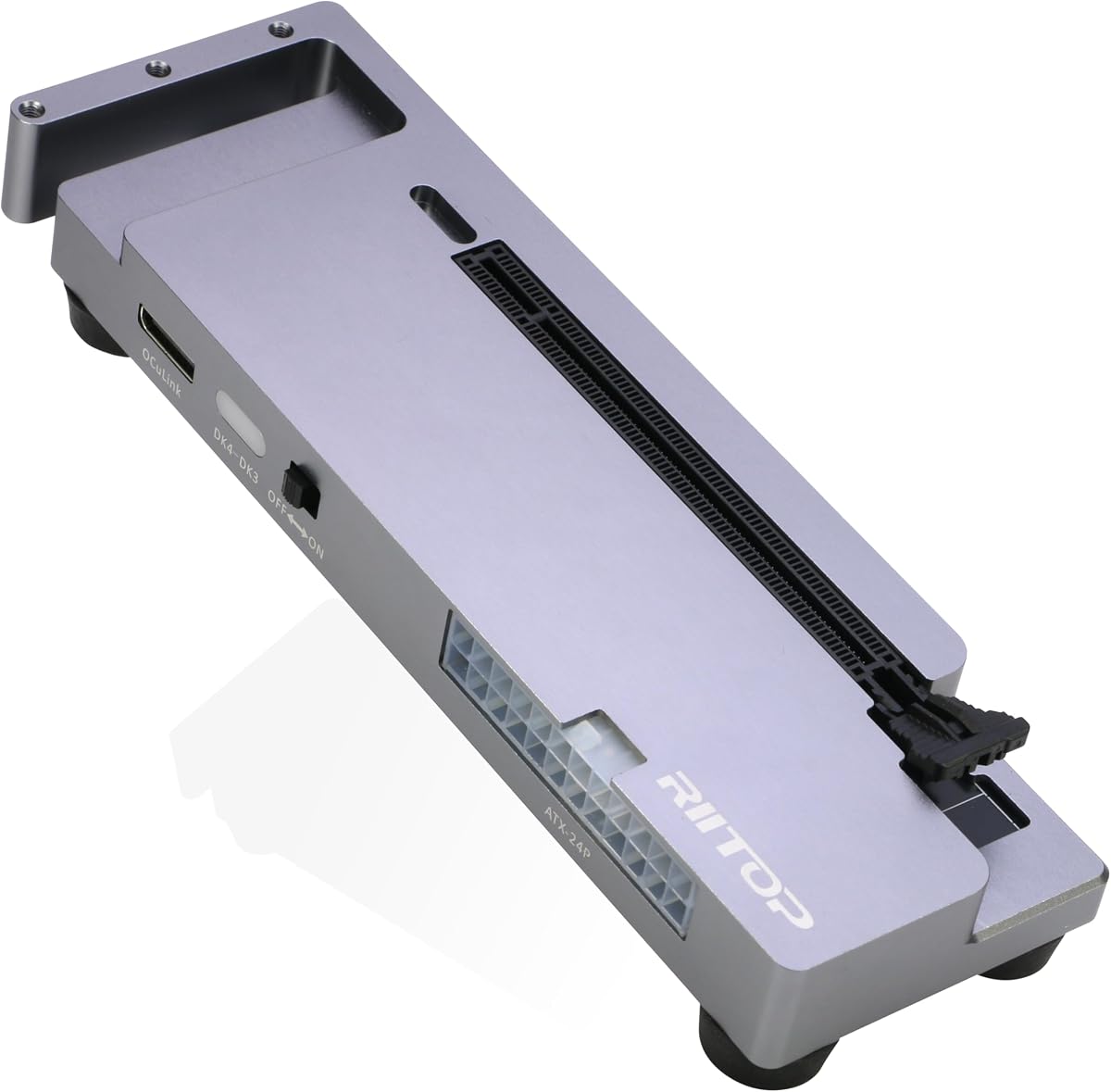
The RIITOP dock is the most feature-oriented premium entry in the list, combining a 5.0 rating with broad hardware and operating-system support. It requires an available OCuLink SFF-8612 port on the host, a PCIe 4.0 x16 graphics card, and a suitably sized ATX or SFX power supply. The enclosure's open design imposes no restriction on graphics-card length.
We may earn a commission when you buy through this link, at no additional cost to you.
Modern GPU families receive explicit attention, including NVIDIA RTX 50-series models and AMD RX 7000-series cards. The product is listed for 64-bit Windows 10 and 11, Linux, and macOS. Support pillars for the graphics card, a power-supply retention bracket, an OCuLink cable, fixing hardware, and a user manual form a more complete accessory package than many competing listings provide.
There are important operating constraints. OCuLink does not support hot-plugging, and its fixed-lock connector requires the release switch to be pressed before removal. On macOS, the listing says support applies to AMD graphics cards and does not extend to NVIDIA. The graphics card and power supply are also excluded, so the complete system cost extends beyond the dock itself.
This premium recommendation suits experienced builders who want flexible ATX or SFX power selection, modern GPU support, and detailed installation guidance. The open structure makes installation and service easier than a sealed enclosure. Verify the host port and operating-system requirements especially carefully, particularly if you expect to use an NVIDIA card in macOS.
ATX and SFX power support allows the enclosure to fit different workstation arrangements. Users can select a power supply based on available space and output needs rather than accepting a single fixed standard.
The five-step guide covers the graphics card, power-supply bracket, required power leads, OCuLink cable, display connection, and drivers. Including fixing pillars also helps keep the heavy card and power supply from shifting once the system is operating.
We may earn a commission when you buy through this link, at no additional cost to you.
This dock combines standard OCuLink operation with support for MCIO hosts, giving it more connection flexibility than most dedicated OCuLink enclosures. In its standard configuration, it uses PCIe 4.0 x4 and includes a 19.7-inch SFF-8611 cable. An MCIO-to-dual-OCuLink cable is required separately for the advertised PCIe 4.0 x8 mode and higher theoretical bandwidth.
We may earn a commission when you buy through this link, at no additional cost to you.
The frame is made from glass-fiber-reinforced ASA, selected for a sturdier and heat-resistant structure. The design includes an ATX power bracket, a more accessible power button, rear routing for power cables, and the same thin shielded cable and status indicators found on other open-frame docks. GPU and ATX power supply are not included.
This product has no supplied numeric customer rating, so it is difficult to compare its market reception with the rated docks. Its special MCIO mode also creates an accessory requirement that some buyers may overlook. The usual cautions remain: no hot-plugging, recommended PSU headroom of about 40 percent above GPU full-load consumption, driver installation, and approximately 15 minutes of assembly.
Choose this dock if your host exposes MCIO as well as OCuLink and you may later upgrade to the x8 configuration. Its reinforced frame and cleaner rear cable routing make it appealing for a semi-permanent workstation. For a conventional OCuLink-only setup, one of the shorter standard docks may be simpler and require fewer optional accessories.
The optional dual-OCuLink MCIO arrangement enables PCIe 4.0 x8 operation. That creates a useful upgrade path, but the extra cable and host-side configuration should be considered before treating the x8 mode as a standard feature.
The glass-fiber-reinforced frame, rear cable routing, and strengthened power bracket favor a setup that remains assembled. These details can make the enclosure neater and more stable than a lightweight portable frame.
We may earn a commission when you buy through this link, at no additional cost to you.
The ASUS TUF Gaming A2 is a rugged USB-C SSD enclosure rather than an Oculink graphics enclosure. It holds a 4.5 rating and supports two M.2 drives, including NVMe PCIe and SATA SSDs in 2242, 2260, and 2280 sizes. Its USB-C 3.2 Gen 2×2 interface provides transfer speeds up to 20Gbps, making it useful for portable storage expansion.
We may earn a commission when you buy through this link, at no additional cost to you.
Durability is a central selling point. The chassis is tested to U.S. MIL-STD-810H standards and carries an IP68 water and dust resistance rating. A protective silicone-rubber exterior adds another layer of impact protection. The aluminum body and thermal pad help dissipate heat, while the Q-Latch mechanism allows tool-free SSD changes.
The defining limitation is fundamental: it has no native OCuLink port, PCIe slot, graphics-card bay, or external ATX power provision. It cannot connect a laptop or mini PC as a true eGPU enclosure, and its 20Gbps interface is designed for storage rather than full graphics expansion. Including it highlights why shoppers should distinguish an enclosure carrying the Oculink name from a general storage product.
Buy the TUF Gaming A2 when the priority is a tough, thermally managed dual-SSD enclosure for a laptop or desktop. It is especially appealing for users who frequently transport drives between systems. Do not choose it for OCuLink gaming, rendering, or AI acceleration, because it lacks the required PCIe graphics connection.
The combination of an aluminum alloy chassis, protective rubber exterior, and military-standard drop testing suits frequent transport. IP68 protection also provides reassurance in environments where dust or water may be present.
USB 3.2 Gen 2×2 offers useful transfer performance for NVMe media, and the Q-Latch design removes the need for screws during routine swaps. The thermal pad helps keep both supported drives at a suitable operating temperature.
We may earn a commission when you buy through this link, at no additional cost to you.
Choosing an OCuLink enclosure requires matching the host interface, intended expansion device, power supply, physical layout, and operating system. Because the category includes both graphics docks and protocol adapters, verifying the exact task is the first and most important step.
Summary: Buy only after confirming native OCuLink or a verified adapter path.
Summary: Compare the host link, cable configuration, and graphics slot together.
Summary: Match PSU form factor, wattage, mounting points, and cable requirements.
Summary: Measure the card and clearance, even when a listing says no length limit.
Summary: Choose the shortest cable that comfortably reaches the intended layout.
Summary: Verify the complete host, card, driver, and operating-system combination.
Summary: A graphics enclosure needs a PCIe x16 slot, power, retention, and cooling support.
Summary: Confirm included hardware and plan for installation before checkout.
Begin with a fully powered-off host. Install the graphics card in the PCIe x16 slot, secure it with the provided bracket or support pillar, and mount a compatible ATX or SFX power supply as specified by the enclosure. Install the appropriate graphics drivers on the host before making the first connection, then connect the SFF-8611 cable, display output, and required power leads with care.
Power the enclosure and host in the order recommended by the graphics-card and enclosure instructions. Confirm that the graphics card is detected, that the external display receives a signal, and that the status indicators show the expected state. If the card is not detected, shut everything down, reseat the card and cable, verify the drivers, and confirm that the host exposes a genuine OCuLink connection.
Never hot-plug an OCuLink cable. Before disconnecting or rearranging the system, shut down the computer and power off the enclosure. Keep the SFF-8611 connectors free of dust and bending, route the thin cable without sharp folds, and avoid placing strain on the graphics card or power connections. Clean the open frame with dry, nonabrasive methods and periodically verify that screws, brackets, and cables remain secure.
Not automatically. A USB-C port does not provide native OCuLink unless the computer specifically includes the correct OCuLink connection. Some systems may work with a suitable adapter connected to an M.2 NVMe or desktop PCIe slot, but that adapter is sold separately and must support the intended PCIe configuration.
Most listed docks support NVIDIA, AMD, and Intel cards, with the open frame generally accommodating a wide range of card sizes. Actual support also depends on the host operating system, installed drivers, power supply, physical dimensions, and whether the enclosure provides a full PCIe x16 graphics slot.
No. The listed docks use a PCIe x16 graphics slot while providing a PCIe 4.0 x4 OCuLink link between the enclosure and host. The graphics card can therefore use a full x16-shaped connector, but the available host bandwidth is limited by the x4 connection.
No. Every listed graphics dock warns against hot-plugging. Shut down the host fully and power off the enclosure before connecting or removing the SFF-8611 cable to reduce the risk of damage, crashes, corruption, or unstable device detection.
No. The reviewed OCuLink graphics docks generally include the enclosure, cable, mounting hardware, and documentation, but not a graphics card or ATX power supply. The RIITOP model lists ATX and SFX support, while most of the open-frame options are designed specifically for standard ATX power supplies.
Check that the correct graphics drivers were installed before the first connection and that the monitor is attached to the external card rather than the host's integrated display. Also reseat the graphics card, verify every display and power cable, and confirm that the computer truly has a native OCuLink port.
For a compact setup, the included 19.7-inch cable is usually easiest to manage. The 29.5-inch option offers more placement flexibility, while the 39.4-inch lead helps when the enclosure must remain far from the host. Choose based on actual routing needs and avoid sharply folding the thin cable.
No. An M.2 OCuLink adapter is primarily a PCIe protocol converter for an NVMe drive and can technically handle other supported PCIe devices. An eGPU enclosure provides a physical PCIe graphics slot, external power, card retention, and cooling, making it the appropriate choice for adding a desktop graphics card.
The best overall value is the first-ranked PCIe 4.0 x4 OCuLink dock, which combines a 19.7-inch shielded cable, an open frame, useful status controls, and broad GPU support. The third-ranked model is the best balanced pick, earning a 5.0 rating and providing clear driver guidance, while the RIITOP dock earns the premium position for ATX and SFX flexibility, modern GPU coverage, and detailed installation support.
Prioritize native OCuLink compatibility above all else, followed by power-supply format, graphics-card clearance, cable length, and operating-system support. A native port avoids adapter complexity, while a suitable PSU and adequate headroom protect sustained performance. For unusual expansion needs, the Oculink M.2 adapter is useful, but it should not be mistaken for a full graphics enclosure.
Product listings, availability, and prices can change over time, so check the current details before purchasing. Confirm the exact computer model, native connector, card dimensions, power requirements, and included accessories on the live product page. Those checks are essential for turning a technically capable enclosure into a reliable external graphics system.


