
Highwings USB C to HDMI Adapter
4.5Editor score
4K at 60Hz
Braided nylon construction
Driver-free installation
Our HDMI Output to Input Adapter for Laptop guide compares 10 options across USB-C, DisplayPort, VGA, Mini HDMI, HDMI switching, and signal conversion needs.
Connecting a laptop to an external display is simple when both devices use the same video standard, but shoppers searching for an HDMI Output to Input Adapter for Laptop may actually need USB-C, DisplayPort, VGA, or Mini HDMI conversion instead. The right adapter depends on the source port, display input, signal direction, resolution, and whether charging or extra data ports are required.
This guide compares ten adapters and switchers based on the capabilities stated in their product information. It covers USB-C video output, DisplayPort-to-HDMI and HDMI-to-DisplayPort conversion, VGA-to-HDMI audio, Mini HDMI portability, and HDMI source switching. Directional limitations and external-power requirements are also considered because they determine whether an adapter will work in a particular setup.
Each pick below explains its strongest use, practical limitations, and ideal user. The first three recommendations highlight the most balanced choices for typical laptop-display connections, while the remaining entries serve more specialized needs. Product availability and pricing can change, so verify your laptop ports, display requirements, and the latest specifications before purchasing.
4.5Editor score

4.6Editor score

4.6Editor score
The comparison below highlights signal direction, maximum video mode, portability, and connection type. These details reveal which products fit modern USB-C laptops, legacy DisplayPort or VGA systems, Mini HDMI equipment, and setups that require HDMI source switching.


The Anker USB C to HDMI Adapter is the most broadly useful pick for a modern laptop that has a video-capable USB-C port. Its 4.6 rating reflects a strong balance of compatibility, construction, and straightforward operation. The adapter can stream video to an HDMI-equipped television, projector, or display at resolutions up to 4K, making it suitable for extended workspaces as well as presentations and entertainment.
We may earn a commission when you buy through this link, at no additional cost to you.
Its strengths center on a simple, durable design. Anker describes a lightweight aluminum casing for heat dissipation and a reinforced braided-nylon cable for resistance to twisting and pulling. The adapter supports USB-C DisplayPort Alternate Mode, USB4, and Thunderbolt connections, so it covers many current laptops, tablets, and compatible devices without requiring software installation. It also includes an 18-month warranty and customer support.
The important limitation is that this is a display-output adapter, not a charging hub. It does not support Power Delivery, which means the laptop's USB-C port will not be charged while the adapter is in use. A separate charger may therefore be necessary during long sessions, particularly when power is already being consumed by an external display. The USB-C port must also support DP Alt Mode or another listed video-capable protocol; not every USB-C connector outputs video.
This is the strongest general recommendation for someone who wants a dependable USB-C-to-HDMI connection without paying for a multiport hub. Choose it when your priorities are high-resolution video, broad compatibility with modern ports, simple setup, and a reinforced cable. If you need simultaneous charging, multiple USB devices, or bidirectional conversion, the ABIWAZY multiport adapter or a directional DisplayPort solution may fit more closely.
The adapter supports video at up to 4K resolution and works with USB-C devices using DP Alt Mode, USB4, or Thunderbolt. That makes it a practical bridge between a modern laptop and an HDMI television or monitor without driver-based configuration.
An aluminum shell helps dissipate heat, while the reinforced braided cable is designed for repeated bending and handling. These construction details make the adapter easier to carry between a desk, meeting room, and travel setup.
We may earn a commission when you buy through this link, at no additional cost to you.
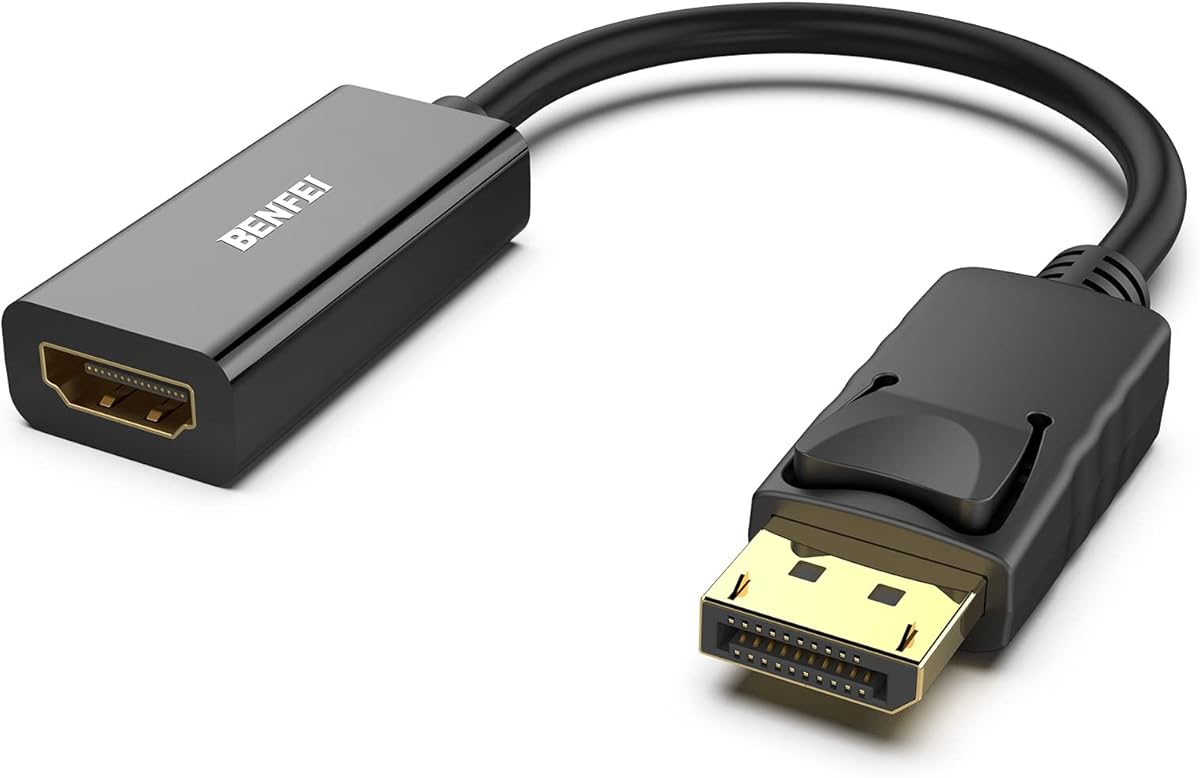
The BENFEI 4K DisplayPort to HDMI Adapter is designed for laptops or desktop computers that output DisplayPort and need to connect to an HDMI monitor, television, or projector. It carries a 4.5 rating and offers a compact solution for presentations, extended desktops, and shared workspaces. Its primary selling point is simple directional conversion without installing software.
We may earn a commission when you buy through this link, at no additional cost to you.
The built-in conversion chip handles DisplayPort-to-HDMI signal translation. Supported modes include 3840 by 2160 at 30Hz, 1920 by 1080 at 60Hz, 720p, 1600 by 1200, and 1280 by 1024. A gold-plated DisplayPort connector is intended to resist corrosion and abrasion, while the DisplayPort latching design helps prevent accidental disconnection during presentations or desk use.
There are two important boundaries. First, the adapter is expressly unidirectional and cannot send HDMI from a source device into a DisplayPort-only monitor. Second, its headline 4K mode runs at 30Hz rather than 60Hz. Users who need smoother 4K motion, high-refresh 2K gaming, or the reverse HDMI-to-DisplayPort direction should select a different model.
BENFEI's adapter is a sensible choice for a DisplayPort-equipped laptop whose target screen has only HDMI. It is particularly useful for presentations where a stable physical connection and pocket-sized form matter. Verify that the laptop's DisplayPort output is compatible and that 30Hz 4K or 60Hz 1080p meets your needs before buying.
The latching DisplayPort connector is intended to keep the source connection secure during demonstrations. A release button must be pressed before removal, reducing accidental unplugging without requiring a separate retention accessory.
The adapter covers 4K at 30Hz and 1080p at 60Hz, along with several legacy computer resolutions. That range works well for document work, presentations, and standard productivity displays.
We may earn a commission when you buy through this link, at no additional cost to you.
The Moread 4K DisplayPort to HDMI Adapter combines a 4.6 rating with a broad set of supported video and audio modes. It is a compact converter for connecting a DisplayPort-equipped desktop, laptop, graphics card, or other source to an HDMI monitor, television, projector, HDTV, or compatible VR headset.
We may earn a commission when you buy through this link, at no additional cost to you.
Video support extends to 4K at 30Hz, 2K at 60Hz, and 1080p at 120Hz, with additional support for 1080p at 60Hz, 720p, and several computer resolutions. The stated audio support includes uncompressed digital 7.1, 5.1, or 2-channel surround sound. A locking DisplayPort connector, gold-plated contacts, reinforced ABS housing, modeled strain relief, and a strengthened HDMI port are intended to improve durability.
The most important limitation is that this is a passive, unidirectional adapter. It cannot carry a signal from an HDMI source to a DisplayPort monitor, and its compatibility statement specifies docking stations, hubs, and KVM devices with DisplayPort dual mode. It also may not behave like an active converter when the source or display has unusual protocol or refresh-rate combinations.
Moread is the budget recommendation for someone who already owns a DisplayPort laptop but needs to use an HDMI display. It is especially attractive for high-refresh 1080p use, presentations, and general productivity. Confirm passive DisplayPort compatibility and verify the desired resolution and refresh rate before purchase.
Support for 1080p at 120Hz gives the adapter more flexibility for fast-moving content than a basic 4K-at-30Hz-only converter. The available mode still depends on the source computer, graphics output, and connected display.
The adapter can pass uncompressed digital surround audio, including 7.1, 5.1, or two-channel configurations. This makes it useful for systems where the source sends both video and sound through DisplayPort.
We may earn a commission when you buy through this link, at no additional cost to you.
The Highwings USB C to HDMI Adapter for Home Office offers 4K at 60Hz through a straightforward USB-C-to-HDMI connection. Its 4.5 rating reflects a well-specified adapter aimed at laptop users who need smooth high-resolution output and dependable physical construction.
We may earn a commission when you buy through this link, at no additional cost to you.
This adapter can send video and audio from a compatible USB-C laptop or tablet to an HDMI display. It works with HDMI 1.4, 1.3, and 1.2 screens, and the female HDMI end lets users reuse a standard HDMI cable. The design includes flexible strain relief, 24K gold-plated connectors, and a braided nylon jacket intended to withstand frequent insertion and daily flexing.
It does not charge the connected device, and the source USB-C port must support DisplayPort Alternate Mode. The product information also recommends a High Speed HDMI cable no longer than 4.5 meters for stable 4K output. The adapter's chip may become warm during high-resolution transmission, which the manufacturer describes as normal. It is also strictly one-way and cannot be used in the HDMI-to-USB-C direction.
Highwings is the premium-focused choice for a USB-C laptop that needs 4K at 60Hz and a reinforced cable. It is a good fit for home offices, presentations, and compatible phones or tablets that support video output. Confirm DP Alt Mode on the device and keep an appropriate HDMI cable available.
The stated 4K at 60Hz capability gives this adapter an advantage over converters limited to 4K at 30Hz. Actual output still depends on the laptop, operating system, application, display, and cable.
Gold-plated contacts, flexible strain relief, and a braided jacket target the wear associated with repeated plugging and cable movement. The design is particularly appropriate for an adapter that travels between workstations.
We may earn a commission when you buy through this link, at no additional cost to you.
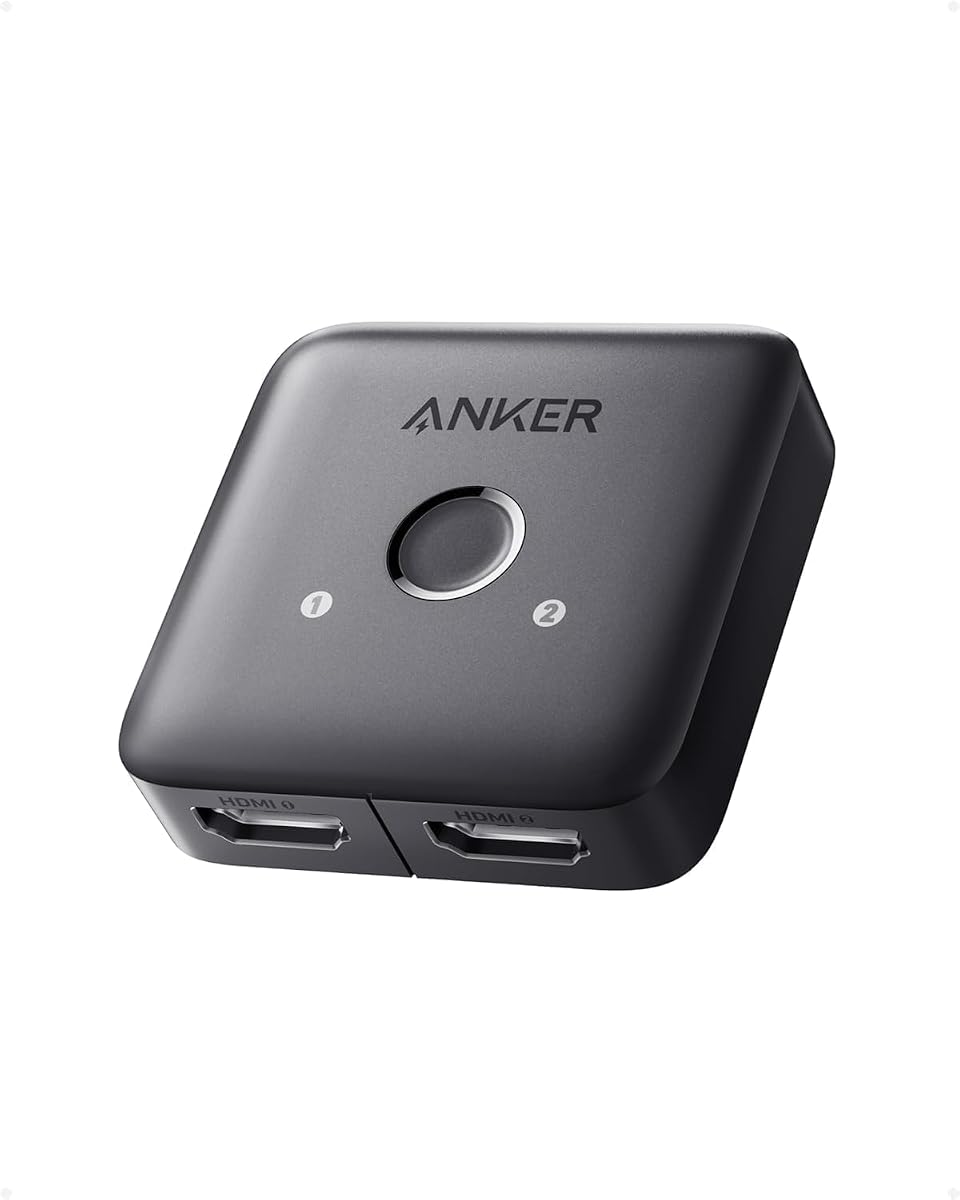
The Anker HDMI Switch is not a signal-conversion adapter, but it solves a closely related laptop-display problem: connecting one HDMI display to two HDMI sources. It supports resolutions up to 4K at 60Hz and includes a manual button for changing the active source without unplugging cables.
We may earn a commission when you buy through this link, at no additional cost to you.
The 2-in-1-out arrangement can connect a laptop and another source, such as a game console, to a single television or monitor. Manual button switching is supported, but automatic source detection is not. Only one display can be active at a time, and the switch does not support HDMI CEC. These distinctions make it a simple source selector rather than a multi-screen extender.
For stable 4K at 60Hz, Anker advises using input and output HDMI cables shorter than 3.3 feet with 30AWG, with combined cable length no greater than 6.5 feet. Longer or unsuitable cables may prevent the desired mode. The product includes an 18-month warranty and customer support.
Choose this switch when your laptop already has HDMI output and you want to alternate between it and another HDMI device on one screen. It is less suitable when you need HDMI-to-USB-C conversion, automatic switching, simultaneous displays, or long cable runs.
Two HDMI inputs let a laptop share a television or monitor with a console or other source. A front-facing control simplifies transitions without reconnecting cables each time.
The switch supports up to 4K at 60Hz, but achieving that mode depends on compliant short cables. Its specification is useful for compact desk setups rather than installations with lengthy cable runs.
We may earn a commission when you buy through this link, at no additional cost to you.
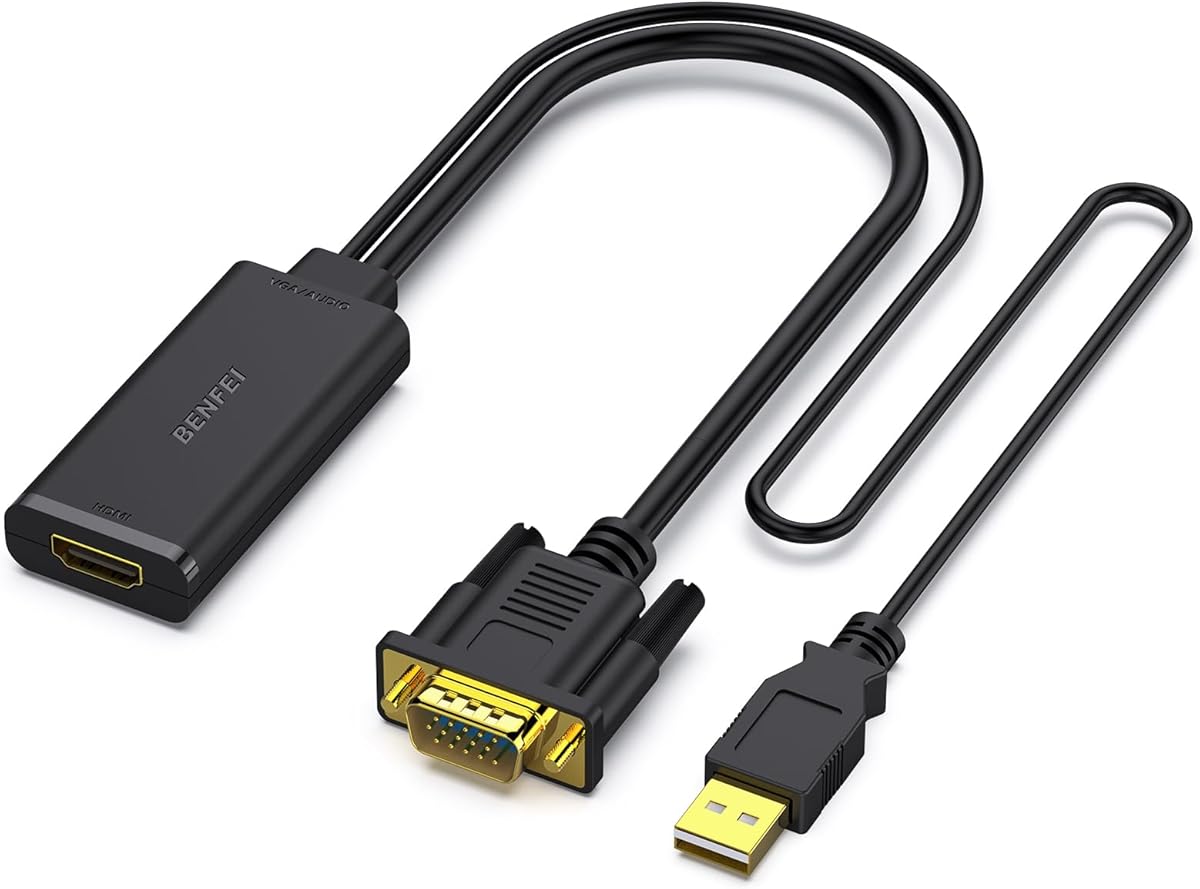
The BENFEI VGA to HDMI Adapter is aimed at older computers and laptops with VGA output, particularly when the available television or projector accepts HDMI. It carries a 4.5 rating and provides a practical bridge for presentations and basic extended-desk arrangements where modern USB-C or DisplayPort outputs are unavailable.
We may earn a commission when you buy through this link, at no additional cost to you.
An integrated advanced chip converts the laptop's analog VGA signal into digital HDMI. The product is rated for 1080p output and includes an integrated USB cable that carries digital audio separately over HDMI. In Windows, audio can be directed through the Sound menu to the connected display. A separate HDMI cable is required to join the adapter to the television or monitor.
This is a one-direction adapter. It cannot send an HDMI source signal to a VGA-only monitor, and it cannot solve the reverse conversion problem. It also lacks many of the high-refresh and 4K capabilities found in contemporary USB-C and DisplayPort adapters, making it a specialized solution rather than an all-purpose modern laptop accessory.
BENFEI's VGA converter is worthwhile for an older laptop, institutional computer, or legacy presentation device that must feed an HDMI screen. Verify that your computer has VGA output, that the display accepts HDMI, and that the operating system can route audio through USB before purchasing.
Many older business laptops and classroom computers still provide VGA rather than modern digital video. This adapter lets those systems connect to HDMI displays without replacing the computer.
VGA itself does not carry the computer's digital audio, so the integrated USB cable provides a separate route. Windows users can select the USB audio device as the playback source for the presentation.
We may earn a commission when you buy through this link, at no additional cost to you.
The ABIWAZY USB C to HDMI Multiport Adapter is the most integrated option in this guide. It combines a 4K HDMI output, USB Type-C Power Delivery, and a USB-A 3.0 port in one aluminum-bodied adapter. Its 4.4 rating makes it a strong fit for laptop users who want more than a simple video adapter.
We may earn a commission when you buy through this link, at no additional cost to you.
The HDMI output supports up to 4K at 30Hz or 1080p and can mirror or extend a compatible laptop, phone, or tablet to a television, projector, or monitor. The included USB-A 3.0 port offers data transfer speeds up to 5 Gbps and remains backward compatible with USB 2.0 peripherals. The Power Delivery input accepts up to 100W, with a stated safe output of up to 87W.
All three ports can be used simultaneously, but several limitations remain. The USB-C source must be fully functional and support video output, Thunderbolt 3 or 4, or compatible USB-C display protocols. The charging port does not itself carry video. A minimum 65W power adapter is recommended for charging, and only one HDD or SSD is supported. Apple's USB Super Drive is not supported.
Choose this multiport adapter when your setup needs charging, data peripherals, and external display output from one laptop port. It is less suitable when 4K at 60Hz is required, when you need multiple external storage devices, or when your USB-C port is limited to data rather than display and charging.
Combining HDMI, charging, and USB-A reduces the number of cables and adapters required at a desk. Because the ports can operate simultaneously, the hub supports display work alongside charging and peripheral connections.
The charging input supports up to 100W and provides up to 87W to a compatible device. A sufficiently powerful USB-C charger is needed to maintain laptop performance while the display and peripherals are active.
We may earn a commission when you buy through this link, at no additional cost to you.
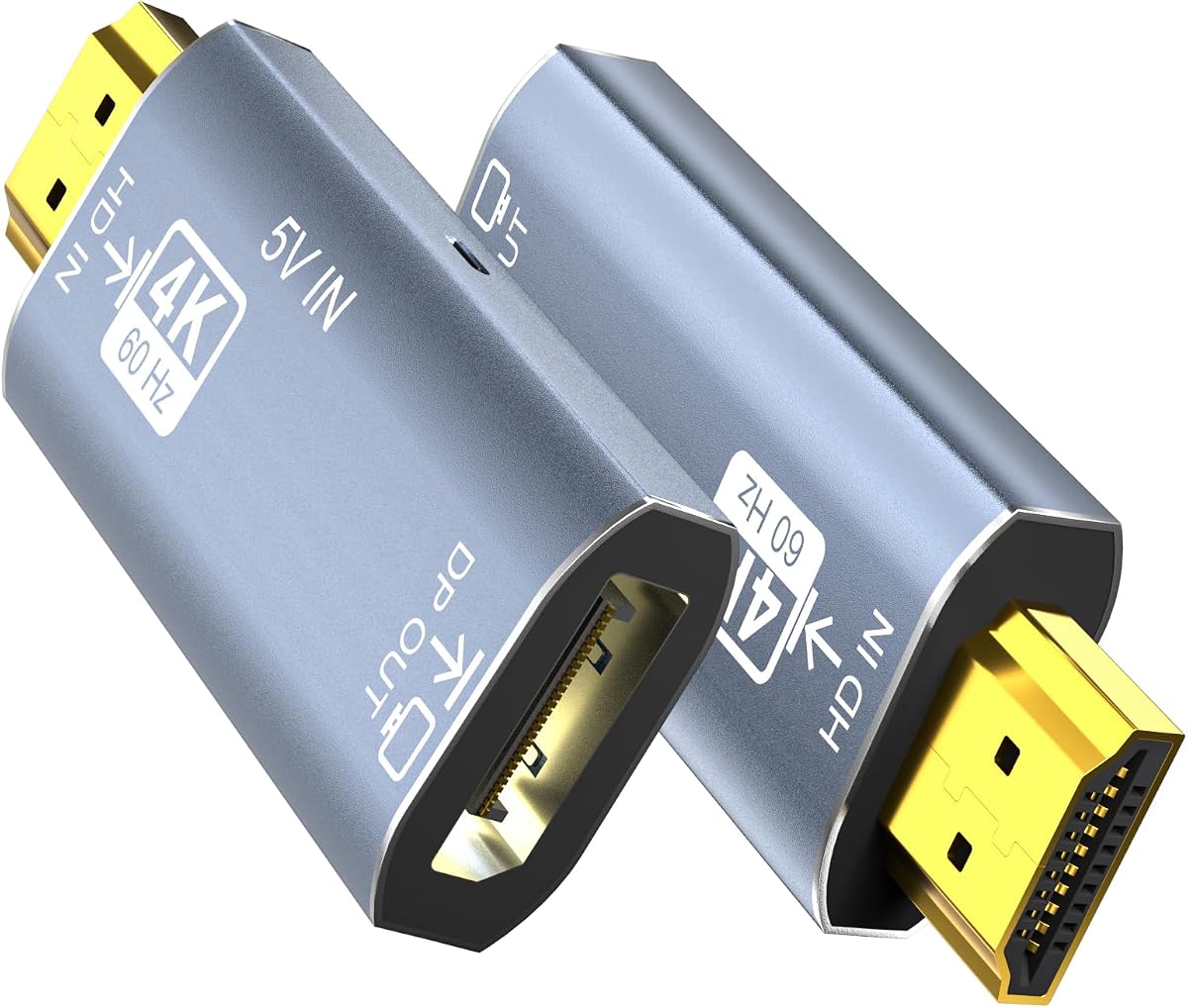
The STSAUX Mini HDMI to HDMI Adapter is specialized for cameras, compact computers, tablets, and other devices equipped with Mini HDMI. It earns a 4.7 rating, the highest among the listed products, and comes as a two-adapter pack for portable or multi-device use.
We may earn a commission when you buy through this link, at no additional cost to you.
Based on HDMI 2.1 specifications, the adapters support 8K at 60Hz, 4K at 144Hz, and 2K at 240Hz, with backward compatibility for earlier HDMI modes. Their 24K gold-plated connectors are designed to resist oxidation and corrosion, while the aluminum alloy housing provides heat dissipation and electromagnetic shielding. The manufacturer states that the connectors were tested for 10,000 insertion cycles.
This adapter simply changes the physical connector format so a standard HDMI cable can connect to a Mini HDMI port. It does not convert USB-C to HDMI or perform the active signal translation found in other products on this list. The source must genuinely have Mini HDMI; the product information specifically warns against confusing it with Micro HDMI or Micro USB.
STSAUX is a compelling choice for Mini HDMI cameras, camcorders, a Raspberry Pi Zero, compatible tablets, or older laptops that use the smaller connector. Its two-pack format also makes it convenient to keep one at home and one in a camera bag. Confirm the exact connector shape and the display's supported HDMI mode before ordering.
The stated support for 8K at 60Hz, 4K at 144Hz, and 2K at 240Hz offers considerable headroom. The actual mode remains limited by the source device, its output configuration, and the connected display.
The pack includes two adapters, allowing simultaneous connections or one spare for a different bag. Their compact size makes them easy to carry with cameras and mobile production equipment.
We may earn a commission when you buy through this link, at no additional cost to you.
The BENFEI HDMI to DisplayPort Adapter is designed for an HDMI source that needs to feed a DisplayPort monitor or display. It supports HDMI 2.0b input, DisplayPort 1.4 output, 4K at 60Hz, and several high-refresh 2K and 1080p modes. The product carries a 4.3 rating and addresses a conversion direction that many simple dongles cannot handle.
We may earn a commission when you buy through this link, at no additional cost to you.
The adapter supports 3840 by 2160 at 60Hz, 2K at 144Hz and 120Hz, and 1080p at 165Hz, 144Hz, and 120Hz. Its audio section supports eight digital channels with sampling rates up to 192 kHz and sample sizes up to 24 bits. A braided nylon cable, aluminum alloy casing, and non-slip connector design support durability and easier handling.
The USB power cable must be connected to an external supply so the conversion chipset receives sufficient voltage. The adapter is also strictly unidirectional: an HDMI source can connect to a DisplayPort display, but a DisplayPort graphics card cannot send its signal to an HDMI television through this unit. Setup may therefore require more care than a basic cable connection.
BENFEI's converter is a practical choice for an HDMI-equipped laptop, mini PC, game console, or other source paired with a DisplayPort screen. Choose it when 4K at 60Hz or high-refresh 2K output matters and you are willing to provide external power. Do not choose it for the opposite signal direction.
Many DisplayPort-to-HDMI products cannot operate backward. This unit explicitly translates an HDMI 2.0b source into DisplayPort 1.4, making it useful for consoles and computers whose native output differs from the target monitor.
Beyond 4K at 60Hz, the stated specifications include 2K at 144Hz and 1080p at 165Hz. These modes give compatible users more flexibility than standard 30Hz-focused adapters.
We may earn a commission when you buy through this link, at no additional cost to you.
The Active HDMI to DisplayPort Adapter is built for converting an HDMI source into a DisplayPort input, particularly when adding an extra screen to an HDMI laptop, mini PC, or desktop graphics card. Its 4.0 rating reflects a capable converter with several practical constraints that buyers should understand before purchasing.
We may earn a commission when you buy through this link, at no additional cost to you.
The active adapter translates HDMI 2.0 to DisplayPort 1.2 and supports 4K at 60Hz or 1080p at 120Hz. It uses hardware-level decoding and requires no drivers, making it usable across Windows, macOS, and Linux. The product is also presented as suitable for console, dock, capture-card, and media-player connections when the source and display support the required standards.
HDR and VRR, including G-Sync, are not supported. The included USB power cable must be connected to a 5V, 1A source before use so the conversion chip can operate correctly. The HDMI connector should connect directly to the host, and the instructions caution against intermediate extension cables or switchers, which can cause black screens or no-signal errors.
This is a good option for standard 4K productivity and extended-desktop setups where HDR, adaptive synchronization, and absolute zero-latency claims are not priorities. Pair it with a quality DisplayPort 1.2 or later cable and provide the specified USB power. It is less suitable for modern high-refresh gaming displays that depend on VRR.
Hardware-level decoding lets the adapter operate without special drivers on Windows, macOS, and Linux. This makes it useful for offices and multi-device environments where installing display software can be inconvenient.
The external USB connection is not optional; it activates the conversion chipset. Providing the specified 5V, 1A source and using direct connections reduces the likelihood of signal errors.
We may earn a commission when you buy through this link, at no additional cost to you.
The correct adapter begins with an accurate inventory of the laptop output, display input, and desired video mode. After confirming those three details, consider signal direction, audio, charging, refresh rate, cable length, durability, and the amount of desk space available.
Look at the physical ports on the laptop rather than relying only on its marketing category. Modern ultraportables often use USB-C for data, charging, and display output through DisplayPort Alternate Mode, while business laptops may retain full-size DisplayPort, HDMI, or VGA. A USB-C port does not automatically mean that it can send video. The relevant device specifications should mention DP Alt Mode, Thunderbolt, or another compatible video-output function. For the Highwings, Anker USB-C, and ABIWAZY options, confirming DP Alt Mode support is essential; otherwise, the adapter may show no picture regardless of its advertised resolution.
Next, inspect the television, projector, or monitor that you intend to use. A full-size HDMI female port on the adapter accepts a standard HDMI male-to-male cable and is common for USB-C-to-HDMI products. DisplayPort laptops may need a male DisplayPort to female HDMI adapter, while older systems may require VGA-to-HDMI conversion. The STSAUX product addresses a different physical interface by adapting Mini HDMI to a full-size HDMI cable. It will not fit Micro HDMI or Micro USB, so compare connector dimensions carefully when the device uses one of those smaller formats.
Direction is the most common reason an otherwise suitable adapter fails. DisplayPort-to-HDMI models in this guide are one-way and cannot send HDMI to a DisplayPort screen. The BENFEI HDMI-to-DisplayPort product and the active HDMI-to-DisplayPort adapter work in the opposite direction: HDMI source to DisplayPort display. The Anker HDMI Switch does not convert protocols at all; it selects between two HDMI sources feeding one HDMI display. An adapter marketed as a simple dongle also may not translate HDMI input into a different physical output. Confirm the source and destination in the exact direction shown in the product description.
Resolution labels alone do not tell the whole story. A product supporting 4K at 30Hz may suit office documents and presentations, while a smoother 4K at 60Hz mode is more appropriate for motion-heavy content. The Moread adapter supports 1080p at 120Hz, the STSAUX Mini HDMI adapter lists 4K at 144Hz and 2K at 240Hz, and the BENFEI HDMI-to-DisplayPort unit supports multiple high-refresh modes. The source graphics output, operating system, application, adapter, cable, and display must all support the desired combination.
A display adapter that only handles video may leave the laptop's USB-C port unavailable for charging. The Anker and Highwings USB-C adapters explicitly do not support charging or Power Delivery. The ABIWAZY multiport adapter includes a separate charging port, allowing simultaneous display, charging, and USB-A data use. If you work for long periods, run demanding applications, or cannot access a charger, a model with Power Delivery may offer better convenience. Confirm the charger wattage and the laptop's charging protocol because the adapter cannot create power that the source or charger does not provide.
Video support does not always mean the same thing for sound. The Highwings adapter sends both video and audio, Moread lists uncompressed digital audio pass-through, and the BENFEI HDMI-to-DisplayPort model supports multichannel digital audio. The VGA-to-HDMI adapter uses an integrated USB cable because VGA cannot carry the computer's digital audio. If you also need peripherals, the ABIWAZY unit includes a USB-A 3.0 port with transfer speeds up to 5 Gbps. Consider whether you need sound, wired input devices, file transfer, or storage rather than assuming every HDMI connection includes all of those functions.
The adapter is only one part of the signal chain. Highwings recommends a High Speed HDMI cable within 4.5 meters for stable 4K output. Anker's HDMI switch has stricter guidance for 4K at 60Hz, advising short input and output cables with a limited combined length. Active or chipset-based converters may also need direct connections without intermediate switchers or extension cables. Longer, thinner, or poorly shielded cables can introduce instability. If your equipment is far from the display, select an adapter explicitly designed for long runs or plan the cable route carefully.
For travel, a lightweight adapter with a short, flexible body is easier to manage than a bulky hub. The Anker USB-C adapter, BENFEI DisplayPort adapter, and Moread converter emphasize compact construction. Reinforced braided cables and gold-plated contacts appear in several options, while the STSAUX Mini HDMI adapters use aluminum housings. For a frequently used desk accessory, prioritize strain relief and secure connector retention. The Moread and BENFEI DisplayPort models use locking DisplayPort connectors, which are especially helpful during presentations where an accidental disconnection would be disruptive.
Begin by confirming that the source device supports the required video standard and that the adapter's direction matches your setup. Connect the adapter directly to the laptop first, then attach the appropriate display cable. For USB-C models, the source port should support DP Alt Mode or a listed Thunderbolt or USB4 connection. For directional converters, verify that you are not attempting to reverse the advertised path, because a physically connected but incorrectly directed setup may produce no image.
Power the converter if its specifications require it. The active HDMI-to-DisplayPort options require an attached 5V, 1A USB power connection, while the BENFEI HDMI-to-DisplayPort adapter calls for external USB power to provide sufficient voltage to its chipset. Connect the display and source directly when possible, select the proper input on the television or monitor, and configure the laptop to mirror or extend the desktop. Adjust the resolution and refresh rate only to modes supported by every device in the chain.
To care for the adapter, avoid sharp bends near the connector, especially on small DisplayPort latches that require a release button before removal. Keep the housing and contacts free from dust, and do not pull the adapter out by its cable. Let a warm converter cool naturally rather than moving it while hot. When traveling, use a small pouch or case, and keep any required power cable and display cable with the adapter so the connection can be reproduced without troubleshooting missing parts.
The term is not standardized, so it may refer to a USB-C-to-HDMI output adapter, a DisplayPort-to-HDMI converter, an HDMI switch, or a cable adapter. These products solve different problems: some change the connector, some translate video standards, and others select between two HDMI sources. Start by identifying the laptop's output and the display's input, then choose the product that connects those exact ports in the required direction.
No. The USB-C port must support display output, commonly through DisplayPort Alternate Mode, and the product specifications should list a compatible mode. Some USB-C ports are data-only, while others support video and charging. The Anker, Highwings, and ABIWAZY adapters all require compatible video-capable ports. Check the manufacturer's specifications for the specific laptop model before purchasing.
The BENFEI and Moread DisplayPort-to-HDMI products featured here are unidirectional. They send DisplayPort from a computer or other source to an HDMI display, but they cannot send HDMI from a source to a DisplayPort monitor. For the reverse path, look for a product explicitly labeled HDMI to DisplayPort and confirm that it has the required power connection.
Only if the adapter includes a functioning Power Delivery input and output. The Anker USB-C-to-HDMI and Highwings USB-C-to-HDMI adapters explicitly do not support charging. The ABIWAZY multiport adapter adds a charging port and states support for up to 100W input and 87W safe output, provided the laptop and power adapter support the required protocols.
Every device in the chain must support that mode: the laptop's graphics output, the operating system and application, the adapter, the HDMI cable, and the display. The Anker USB-C, Highwings USB-C, Anker switch, and HDMI-to-DisplayPort options list 4K at 60Hz, but cable length and source capability may still limit the result. The Multiport and DisplayPort-to-HDMI adapters listed here advertise 4K at 30Hz instead.
The most likely causes are a data-only USB-C port, an incompatible display mode, an attempted reverse connection, or an inadequate cable. First verify DP Alt Mode or Thunderbolt support, then connect the adapter directly and select the correct display input. If the adapter requires external power, connect that as well. For active converters, avoid intermediate switchers or extension cables because the manufacturer warns they can cause black screens.
Buy a switch when both sources already use HDMI and you want one display to show one source at a time. Buy a converter when the source and display use different video interfaces, such as USB-C to HDMI or HDMI to DisplayPort. The Anker HDMI Switch in this guide has two HDMI inputs, one output, manual button switching, and no simultaneous dual-display output.
Yes, with a dedicated VGA-to-HDMI converter. The BENFEI VGA-to-HDMI model converts the analog video signal and provides a separate integrated USB audio path for sound. It is limited to 1080p and cannot reverse the signal to send HDMI to a VGA display. The display also needs its own HDMI input, and an HDMI cable is required.
The Anker USB C to HDMI Adapter is the strongest all-around recommendation for a modern video-capable USB-C laptop, combining 4K support, broad port compatibility, and a reinforced design. The Highwings USB C to HDMI Adapter stands out for 4K at 60Hz and its braided, gold-plated construction, while the Moread DisplayPort to HDMI Adapter is the most compelling budget-oriented choice for a DisplayPort laptop.
Prioritize the source connector, destination connector, and signal direction before considering any other feature. If one USB-C port must also handle charging and peripherals, the ABIWAZY multiport adapter is more appropriate. For a Mini HDMI camera or compact computer, the STSAUX two-pack solves the physical connector problem. HDMI-to-DisplayPort users should choose between the BENFEI and active converter based on supported refresh rates and external-power requirements.
The right adapter is the one that completes your exact connection path without reversing the signal or exceeding the capabilities of the source and display. Review the latest specifications, cable requirements, and compatibility notes before ordering. Product listings, ratings, availability, and pricing can change, so checking current information will help ensure the selected adapter fits the laptop and display you actually own.
